



BitBox Software Download Genuine Software, Install and Use effectively




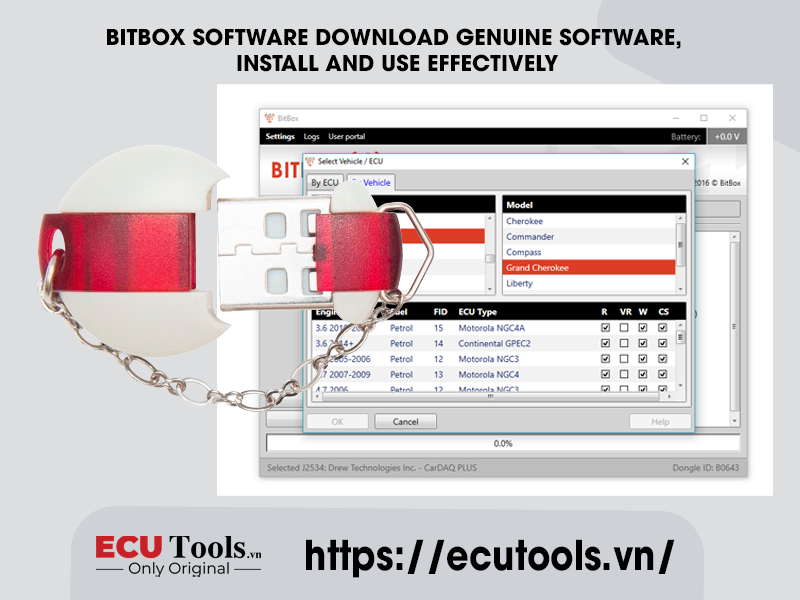
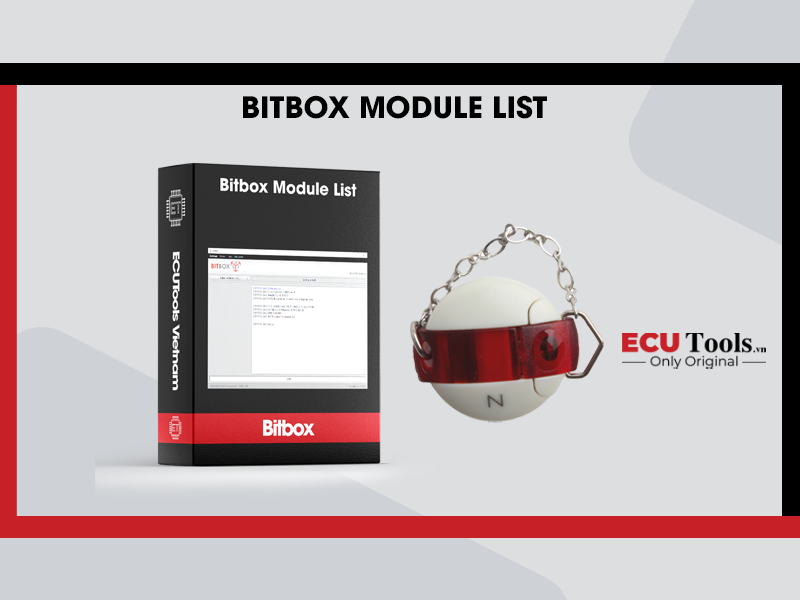
BitBox software is an indispensable tool for technicians specialized in reading, writing, and programming ECU. For the software to work stably and safely, you need to download it correctly BitBox full software, install the correct driver and activate properly using the security dongle.
Download genuine BitBox software
To avoid the risk of using cracked or fake versions that cause ECU errors or loss of license, you need to download BitBox software from a genuine source or authorized partner.
Here are detailed instructions:
Components you need to download:
- BitBox setup file: Official software installer.
- BitBox driver download: USB Dongle driver and J2534 device if needed.
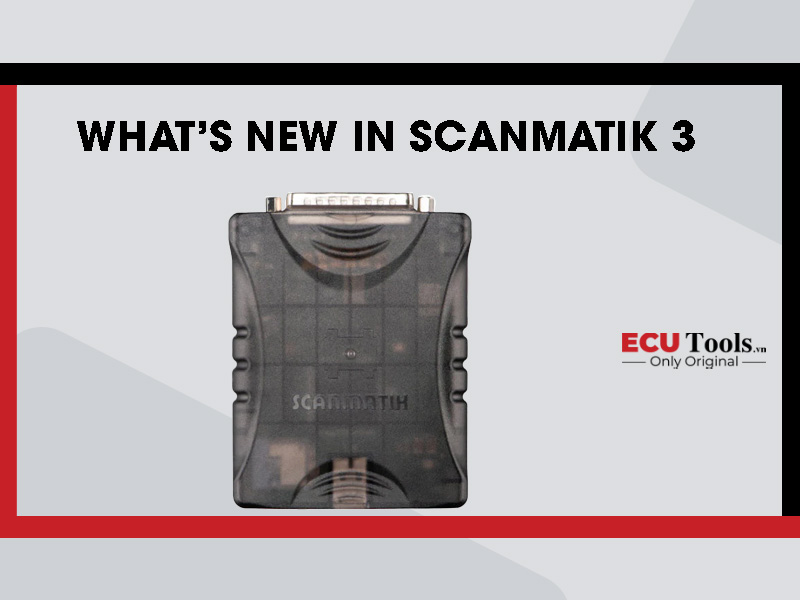
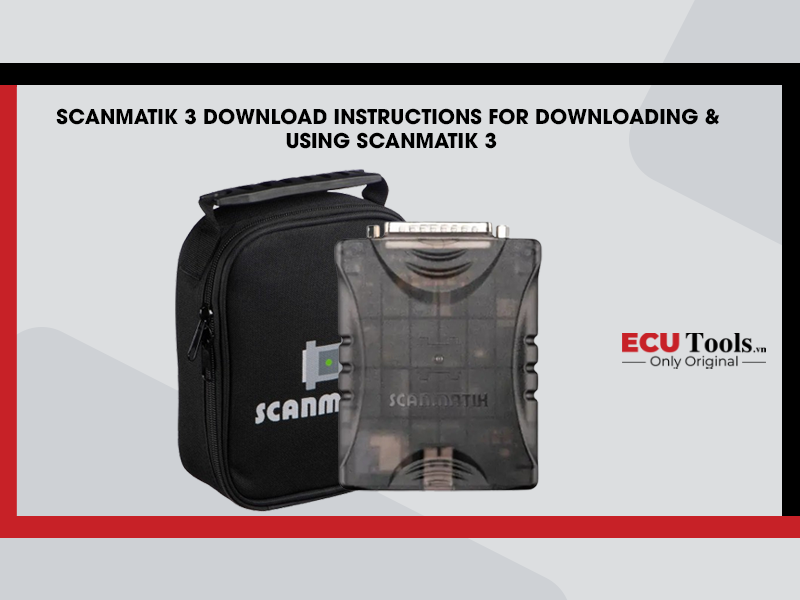
- BitBox tool install: Additional support installation packages (if used with devices such as Openport 2.0, Scanmatik 2 Pro).

How to download BitBox full software:
- Contact BitBox dealer: Request download link bitbox software link official.
- Download and check the checksum: Make sure the file is not corrupted during the download process.
- Unzip the installation file: Use standard decompression software such as WinRAR or 7Zip.
Note: Each BitBox account will be issued a separate copy bitbox latest version In accordance with the activated license, continuously updated to support more new ECUs.
System requirements:
- Windows 10/11 copyright.
- At least 4GB of RAM.
- USB 2.0 port or higher.
- J2534 device driver is suitable if using an external communication device (eg Openport, Scanmatik).
Does BitBox work on Windows 10? Instructions for handling common errors during installation
The answer is: Yes!
BitBox Windows 10 compatible completely. The software is optimized to run smoothly on Windows 10 (64-bit) and the latest Windows 11.
However, when installing, you may encounter some common errors such as:
Common errors and how to handle them:
| Error | Reason | Solution |
| BitBox installation error (“Can’t find dongle” hoặc “Security key not found”) | Not installed correctly BitBox dongle driver | Reinstall the driver that comes with the installer or download it from the dongle manufacturer |
| Error not recognizing device J2534 | Driver J2534 (Openport, Scanmatik) is not installed or has the wrong version | Uninstall the old driver and install the correct driver version |
| BitBox software does not start | Missing Administrator rights or missing .NET Framework | Run the software with Admin rights, install the latest .NET Framework |
| BitBox cannot be updated | Firewall or antivirus blocks the connection | Add BitBox to the exception list or temporarily turn off the firewall when updating |
Standard BitBox installation steps:
- Plug in the USB Dongle into the device before installation.
- Install BitBox tool install from the set setup file.
- Install USB Dongle driver and the required J2534 device.
- Run the BitBox software for the first time → Follow bitbox activation guide to activate the license.
- Update to the latest version if required.
BitBox vs PCMFlash Software: Quick Comparison
If you are wondering between BitBox software and PCMFlash software, below is a brief comparison:
| Criteria | BitBox | PCMFlash |
| Diverse ECU lines supported | Very extensive, constantly updated | Good but mainly Russian and European cars |
| Working mode | OBD, Bench, Boot | Mainly OBD |
| Stability and safety | High (thanks to security dongle) | High but depends on the device |
| Module costs | Must purchase each module separately | Have to buy module but cheaper |
| Suitable subject | Professional garage, tuning service | Basic read/write technician |
In short: If you need an in-depth, highly secure, continuously updated tool, then BitBox is the ideal solution.
Whatsapp: +84.899.402.402
Facebook: ECUTools.vn
Youtube: ECUToolsvn
Tiktok: ECUTools
Website: ECUTools.vn
RELATED NEWS
See all